
If you haven’t already heard, Microsoft is ending support for SharePoint Server 2016 and 2019 this July 2026. There has been a collective push from providers to move to the cloud, in this case SharePoint Online. Additionally, Microsoft is sunsetting SQL Server Reporting Services (SSRS), with SQL Server 2022 being the last release.
One of the clients I am working with has hundreds of SSRS reports hosted on SharePoint Server that need to be migrated to the cloud. Due to the increased push to use Microsoft Fabric, the client decided to convert all SSRS reports to Power BI Paginated Reports and publish them to Power BI Service. Thankfully, Microsoft has allowed a mostly straightforward replication from SSRS reports to Paginated Reports. You’ll just need the desktop version of Power BI Report Builder (as opposed to the desktop app Microsoft Report Builder for SSRS reports) and re-enter the source information. Then publish to Power BI Service by logging in and selecting a workspace.
As a part of the migration efforts, we are organizing a cutover plan to communicate to end users about using Power BI Service instead of SharePoint, and we are developing tipsheets for the new navigation and layouts to ensure a seamless transition come July.
As I work on transferring each SSRS report to Power BI Paginated Reports, here are some issues I’ve run into and workarounds or solutions that could help on your organization’s migration journey. If you have any questions, reach out to our Keller Schroeder Data Strategy team to help!
- Document Map is not rendered in Power BI Service
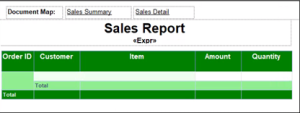
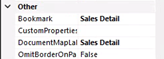
One of the key features provided by SSRS is unfortunately not supported at this point in Power BI Service. If your SSRS report currently has a Document Map, there is not an easy way to replicate this feature without modifying the actual layout of the report. A workaround is to use Bookmarks in the header of the Paginated Report. Each object in your report that has a Document Map label can also have a Bookmark label. In the header of your report, you can create a textbox, add an Action to the textbox “Go to Bookmark”, and specify the Bookmark name. When published you can click on the textbox and it will jump to wherever you have the Bookmark!
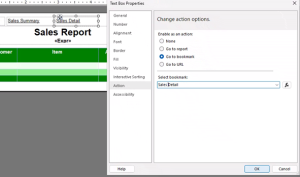
- Linked reports must be in the same Power BI Workspace
Previously, using SSRS, links to another report were accessible via specifying the specific folder path using the Action feature on a textbox. However, with this move to Power BI Service, Paginated Reports no longer can navigate to any report. The Action feature “Go to report” only supports navigation to reports that are in the same Power BI Workspace (now called “Drill down reports”). Additionally, the entire folder path is not required; simply the name of the report is sufficient for the link to work.
- Security groups from AD can be reused for Power BI Service
One of the best features of working in the Microsoft universe is the ability to easily replicate security groups and different access levels across different applications. So, whatever system that your organization currently utilizes for your reporting structure in SharePoint Server can easily replicated to into Power BI Service.
- Shared Datasets are not supported in Power BI Service
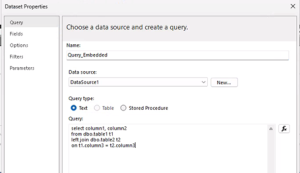
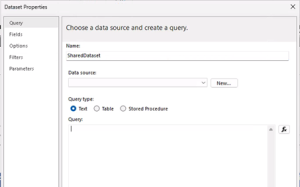
Shared Datasets are an easy, replicable method to implement data sources in SSRS reports. Unfortunately, this feature is not currently support in Paginated Reports. To migrate SSRS reports that use Shared Datasets, you’ll need to copy the contents of the Shared Dataset into the Paginated Report as a new Data Source. This will require copying the query text, server and database information, and parameters and fields manually as a new Dataset object. This method will allow you to keep the same result set of the report, only with embedding the Dataset instead of referencing an external Shared Dataset.